

Illustration for this guide; not an app screenshot.
You tap a downloaded APK and Android reports a problem parsing the package. The message appears before you can use the app, but it does not identify one universal cause. Repeating the tap or enabling unrelated settings gives you little new information. Start with the exact file and the exact message. This checklist explains how to distinguish an incomplete download, an unexpected file and a device or package issue, then prepare a useful report if the same error remains. It does not assume the selected Master Teen Patti release has been installed or tested on your phone.
Capture the message before changing settings
Write down the wording shown by Android, including whether it mentions parsing, an invalid package, incompatibility or an installation conflict. Those descriptions should not be collapsed into a single “APK problem” label. Android’s developer documentation distinguishes invalid, incompatible, conflicting and storage-related installation failures. A short manufacturer dialog may not expose that underlying distinction, so do not claim to know its technical code from the headline alone.
Record where the message appears: in the browser’s download list, after opening the file in Files, or inside Android’s installer. Add the phone model and Android version. A screenshot can preserve the wording, but crop out notifications and personal information. This small record gives the next check a starting point and lets you tell whether a later attempt failed in the same way.
Make sure you are opening the completed copy
Open the Downloads list in the browser used for the transfer. A paused or still-running entry is not the same as a completed APK. If there are several similarly named files, note the timestamp and size of the one you are investigating. A suffix such as “(1)” usually distinguishes saved copies; it is not evidence of a newer app version.
Use one identified copy for each check. If you choose to download again from the confirmed source, wait for completion and record which copy is new before opening it. Avoid deleting the old installed app as part of this file check. A downloaded installer and the app already on the phone are separate objects, and removing the app does not explain what bytes were saved in Downloads.
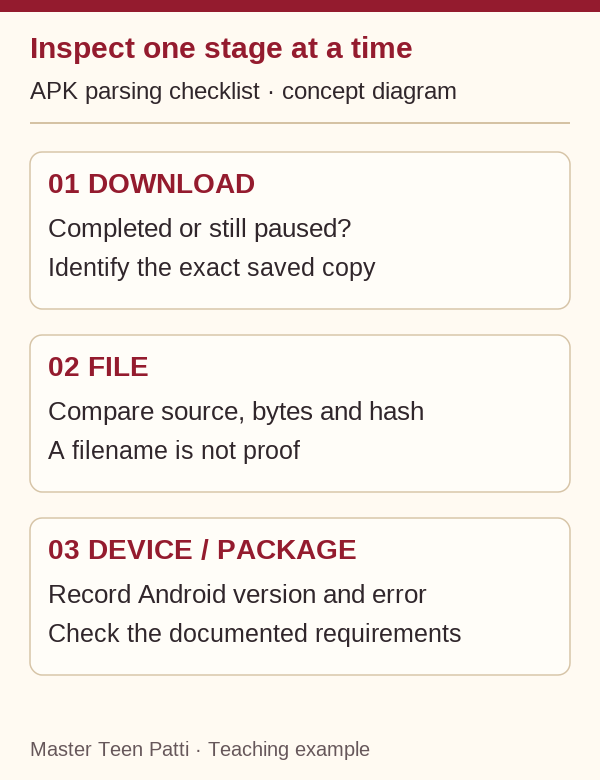
A filename alone cannot establish the file type
An APK label or extension is not a substitute for a valid package. For example, a failed web request may leave you with a response that is not the expected installer. If your browser reports a web page or another file type, or the saved item is dramatically smaller than the dated release record, stop and investigate that mismatch before trying to install it.
Do not repair a supposed package by renaming an unrelated document to end in .apk. Renaming changes the label, not the file’s contents. Likewise, an archive advertised elsewhere may require a different delivery method; do not assume every file presented as an Android download can be opened as one ordinary APK. This site links the user-confirmed APK source, so compare against that specific file record rather than a third-party replacement.
Use file size and checksum for the question they answer
Compare exact bytes where your file tool exposes them; rounded megabytes are a less precise check. A size mismatch is useful evidence that you are not comparing identical-length files, but matching size alone does not establish identical content. If you can calculate SHA-256 with a trusted local tool, compare the full value against the dated record, not merely its first or last few characters.
A matching checksum answers whether the downloaded bytes match the recorded bytes. It does not prove that the package is suitable for every Android device, identify the publisher independently or establish safety. If the bytes match and the same parsing message remains, repeating the same download is less informative than checking compatibility or asking the verified provider about that release. Keep the result with the original error message.
Read what size and SHA-256 checks can establish.
Swipe across to see all columns.
| Observation | Check next | Do not assume |
|---|---|---|
| Paused download | Transfer completion | Ready to install |
| Different file size | Source and copy identity | Identical file |
| Matching SHA-256 | Device / package evidence | Guaranteed compatibility |
| Harmful-app warning | Stop and investigate | Ordinary parsing error |
Read Android compatibility as a separate check
Check the Android version in the phone’s own settings and compare it with the documented package requirements. Do not use a filename number as a minimum Android version. A package may also depend on hardware or native-code support beyond a simple version threshold. Android documents incompatibility separately from an invalid package, so an apparently similar installer dialog should not lead to a confident diagnosis without more evidence.
This website’s file record contains dated observations, not a device-by-device compatibility guarantee. If you meet a listed minimum but installation still fails, keep the phone model and software version in the report. Avoid installing an arbitrary “older version” from an unrelated website as a diagnostic step. That changes both the source and the package, making the result harder to interpret.
Permission, Play Protect and parsing are different
A request to allow installation from the app opening the APK is a source-permission question. A harmful-app warning is a security question. Neither message should be rewritten as a parsing error just because it appears during installation. Read what Android actually asks, and keep Play Protect enabled. Google explains that it checks for potentially harmful apps and may warn or remove them.
Do not turn off protective checks to make a diagnostic message disappear. Also avoid granting unrelated permissions such as contacts or photos in the hope that they will repair an installer file. Those settings answer different questions. If the screen is asking about a source, follow the separate permission guide; if it is warning about harm, stop and investigate that warning through a verified source before proceeding.
Treat an existing installation carefully
If an app with a similar name is already installed, note its identity before changing it. A package or signing conflict is not the same as a broken transfer. Do not uninstall first and ask about recovery afterwards. Make sure you understand the provider’s actual update path and how access or local data can be recovered; this site does not have verified recovery arrangements for your account.
For a first installation, write “no existing app found” if that is what you actually checked. For an update attempt, record the installed version and the new file you opened. Keeping those situations separate helps another person decide which evidence is relevant. Clearing an existing app’s cache does not rewrite a separate APK file, so it should not be presented as a general repair for package parsing.
Review an existing installation before attempting an update.
Make one controlled retry, then compare
Choose the next attempt from the evidence. If the first copy was incomplete, a completed download from the same confirmed source is a meaningful change. If you accidentally opened an older copy, selecting the identified current file changes a different variable. Record which one changed. Switching browser, source, file and several security settings together makes it difficult to know what the result means.
A useful before-and-after note might say: “First copy was paused; second copy completed; parsing message remained when opened from Files.” That is an illustrative record, not a test result for this release. If the same complete file repeatedly fails, stop cycling through downloads and collect the details for the provider or device support. More attempts are not automatically more evidence, particularly when the file and conditions have not changed.
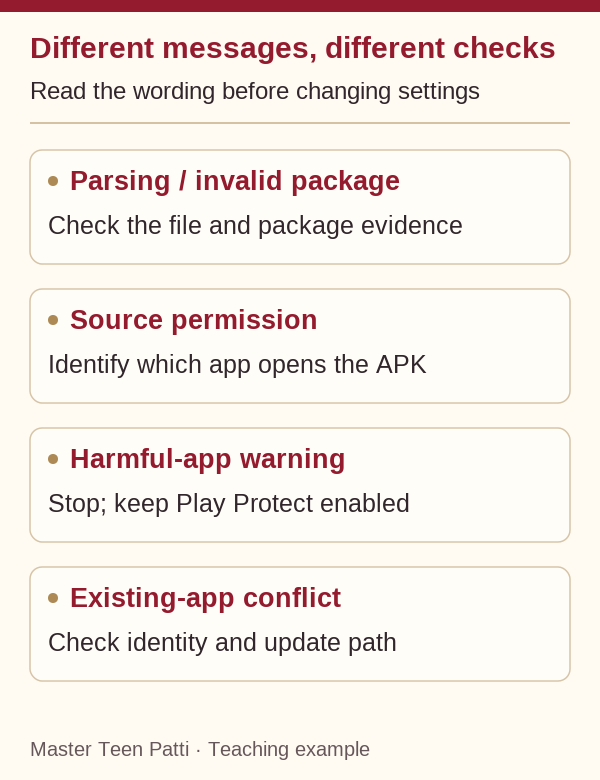
What to include when the error remains
Include the exact Android message, phone model, Android version, original download source, saved filename, completion state, size and any checksum comparison you actually performed. State whether another version is already installed and whether the message appears before or after an installation confirmation. Do not invent checks you did not run, and do not send passwords or one-time codes to explain a file problem.
Can renaming the file fix its contents? No. Does a matching checksum guarantee installation? No. Should you remove the existing app immediately? Not without a confirmed update and recovery plan. Our contact page can prepare a local note; it does not submit a support ticket. The useful outcome of this checklist is a narrower, documented problem that the appropriate provider can investigate, rather than a promise that every parsing error has the same fix.
Sources & scope
- Android Developers: PackageInstaller failure categories
- Android Help: downloading apps and source protection
- Master Teen Patti: dated file checks
Further reading checked on 26 October 2026.
Editorial topic

Nisha Menon
Nisha covers Android installation and device questions, helping readers distinguish an incomplete download from an installer error and choose the next useful check.