

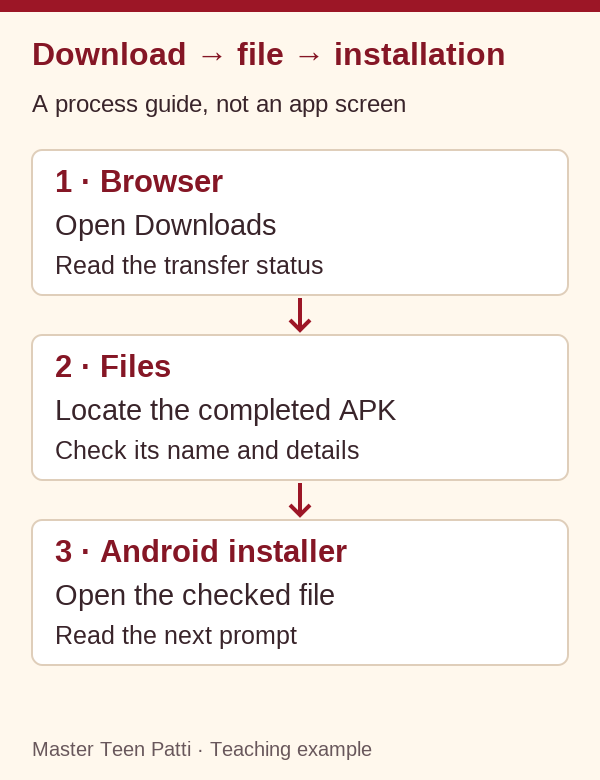
Illustration for this guide; not an app screenshot.
The download page is still open, but there is no new app icon on your home screen. That can be normal: downloading an APK saves a file; installing it is a separate step. Before tapping Download again, check whether the file is already on the phone. This guide follows the file from the browser to the Android installer and shows what to do when the trail stops.
Start in the browser you actually used
If you used Chrome, open its menu and look for Downloads. The placement can differ with the address-bar layout. Check the most recent entry and read its status before opening it. A completed item, a paused transfer and a failed attempt are three different situations, even when they show a similar filename.
If the link opened inside a messaging app or another browser, begin there instead. Chrome cannot necessarily explain a download initiated somewhere else. Think back to the app name visible when you tapped the link. In a help request, “downloaded through Chrome” or “opened inside a message” is much more useful than “downloaded from the internet”.
Use Files if the browser entry is hard to find
Android phones commonly provide a Files app or a manufacturer’s file manager. Open it and look through the download category or recently added files. Sorting by date can help you separate today’s transfer from an older copy. Menu names vary, so a manufacturer’s instructions are a better reference than a screenshot from a different phone.
Search by a recognisable part of the filename if the app supports search. Keep the file extension visible where possible: an APK is an Android package file, not a photograph for the Gallery app. Finding no new picture in Gallery tells you little about whether an APK download succeeded. Look in the place that manages files rather than the place that displays photos.
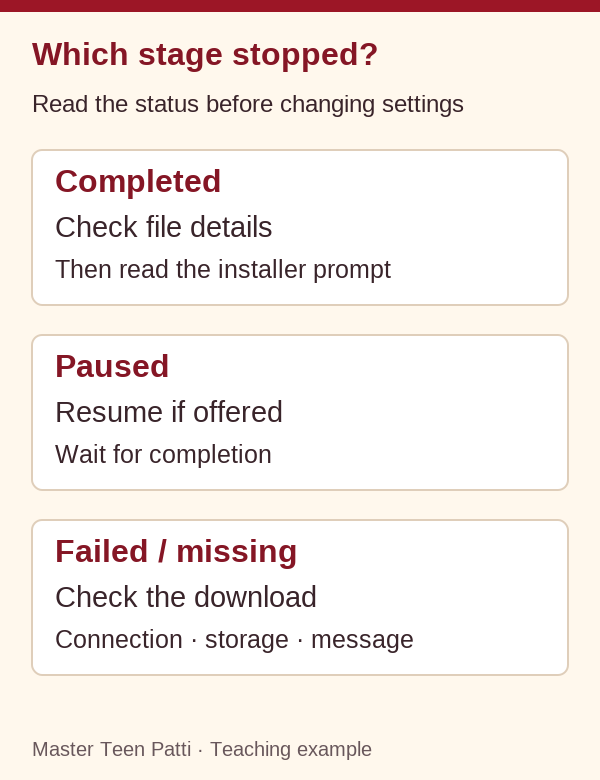
Completed, paused or missing: choose one path
For a completed entry, move on to checking the file details. For a paused transfer, use the browser’s resume control if it offers one and wait for completion. For a failed or missing entry, return to the download guide and inspect the connection, available storage and any displayed message. Do not treat all three cases as an installation error.
Consider this example: you tapped Download, switched to another app and later found an entry still marked as downloading. There is no finished package to install yet. Repeatedly opening that entry will not complete the transfer. The practical next step is to inspect the transfer state, not to change Android’s installation-source permission.
Check the file, not just the familiar name
Open the file’s details if your file manager provides them. Compare the exact byte count with the website’s current file record, rather than relying on a rounded size alone. Different screens may round megabytes differently. A zero-size file or a much smaller unfinished file is not the complete download you intended to open.
A matching size is only a preliminary check. The SHA-256 value in the file record identifies the inspected bytes more precisely. A familiar icon, a similar filename or a recent date does not establish who published the file. Our file-check guide explains the difference between reaching a link, matching a file and verifying a publisher; these are separate questions.
Compare the current APK file record.
Compare the APK source, size and checksum without treating a filename as proof.
Two copies do not mean two app versions
Repeated downloads may leave several similarly named files. Do not pick one solely because its name contains a larger number or a suffix added by the browser. Use the source, completion status, date and file details together. The current download page is the reference for the file selected by this website.
Suppose one copy was saved last week and another today. “Today” tells you when your device saved it, not when the publisher released an app. If you need to keep a record, note the source address and checksum alongside the date. Before removing any file, make sure you know which completed copy you intend to retain. Never uninstall an app merely to tidy its downloaded installer files.
Swipe across to see all columns.
| What you see | What it tells you | Next check |
|---|---|---|
| Paused in Downloads | The transfer is not complete | Connection, storage and any resume option |
| Completed file | The APK was saved | Source, size and current file record |
| Installer prompt | Android has opened the APK | Read the exact permission or error message |
Open the APK and read the next screen
Once you have found and checked the intended complete file, opening it may hand control to Android’s installer. A source-permission prompt refers to the app opening that file. It is not the same as permission for an installed app to read contacts, photos or location. The separate permission guide explains that distinction.
A security warning is another kind of message. Keep Play Protect enabled and read the warning instead of repeatedly retrying. If the phone already has a similarly named app, check the update relationship before proceeding. This website’s currently selected file has a different package name from the earlier linked file, so a familiar brand name alone does not establish an in-place update.
What if the file opened but no app appeared?
Go back to the last screen you actually saw. Was it a download notification, a source-permission page, an installer with an Install button or a completion message? These screens mark different stages. If you closed the installer before accepting installation, the file can remain in Downloads without an installed app appearing.
When installation appears to have completed, use the phone’s installed-app list to check what is present; a home-screen shortcut is not the only place to look. If Android reported an error instead, keep its wording and use the installation-error guide. Avoid a chain of new downloads that leaves you unsure which attempt produced the message you are trying to explain.
A useful note takes less than a minute
Record the browser or file manager, the visible download state, the approximate time and the exact Android message. Add the phone model and Android version if the problem reaches the installer. You do not need to include a password, an OTP or payment details to describe a missing download.
A good note might say: “Chrome lists a completed APK. Files shows the same file. Opening it gives a source-permission prompt naming Files.” That already points to a different step from “Chrome still says paused”. Use the contact page’s local note tool if it helps organise those details. It prepares text on your device; it does not upload the file or submit a support ticket.
Sources & scope
Further reading checked on 22 October 2026.
Editorial topic

Nisha Menon
Nisha covers Android installation and device questions, helping readers distinguish an incomplete download from an installer error and choose the next useful check.