

Illustration for this guide; not an app screenshot.
Android shows two similar-looking storage actions, but they do not do the same job. Clear cache removes temporary app data. Clear storage, sometimes labelled Clear data, removes the app’s local data much more broadly. Before tapping either while troubleshooting Master Teen Patti, identify the problem and read the exact label. This guide separates the actions, explains what to record and gives examples of when the next step belongs somewhere else.
Separate the APK file from the installed app
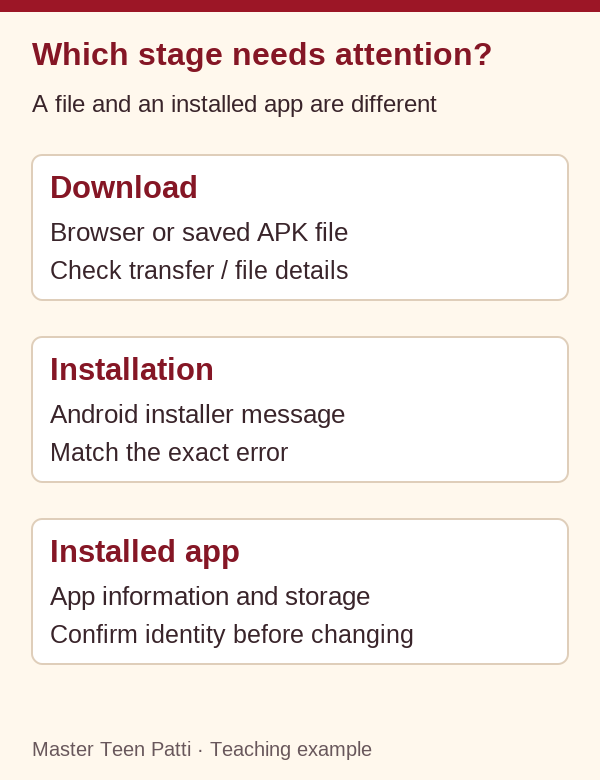
A downloaded APK is an installer file. The installed app has its own Android entry and storage. Deleting an old APK from Downloads is not the same operation as clearing the installed app’s cache. Likewise, opening an app’s storage screen does not prove that the APK you recently downloaded has been installed or that it replaced an earlier app.
Write down which screen you are viewing: browser Downloads, a file manager or Android’s app information page. Suppose Files lists two APK copies but the app opens normally. That is a file-management question, not evidence that the app’s data should be erased. If installation never completed, follow the installation-error guide instead. Keep the stages separate before choosing an action whose effect may be difficult to reverse.
What clearing cache actually changes
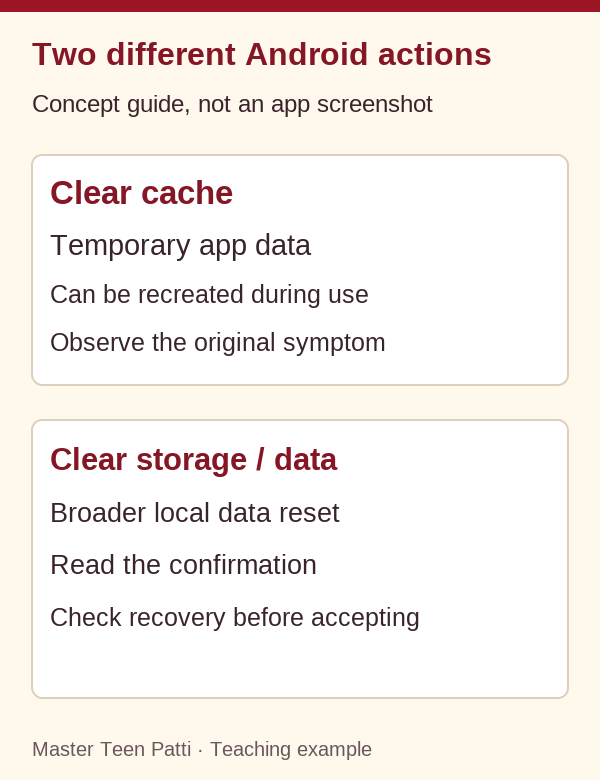
Android describes cached data as temporary data. Clearing it can release some space, and the app may need to recreate or download temporary resources when it next runs. That means the cache can grow again. A smaller number immediately after clearing is not a promise that storage use will stay at that size or that a slow connection has been fixed.
Use a before-and-after note if you are investigating a specific symptom. Record the cache size shown, the message you saw and what happens on the next normal launch. For example, “cache decreased, but the same connection message remains” is a useful observation. It tells you that removing those temporary files did not resolve that particular symptom; repeating the same action without new information may not add anything.
Why Clear storage deserves a separate decision
Clear storage or Clear data is a broader reset of the app’s local data. It may remove saved settings and information needed to resume a local session. Do not treat it as a stronger version of the cache button that should automatically come next. Read the device’s confirmation text and establish how you would regain access before accepting a reset.
The exact relationship between local data and an account depends on the app. We have not verified Master Teen Patti’s account recovery or synchronization behaviour. A familiar login screen is not proof that every item you care about exists remotely. If you cannot establish a recovery route, pause at that point and ask the actual provider for specific guidance. This article cannot promise that clearing data will preserve access, preferences or progress.
Swipe across to see all columns.
| Action | Main scope | Before choosing |
|---|---|---|
| Clear cache | Temporary app data | Record the symptom |
| Clear storage / data | Broader local reset | Confirm recovery |
| Delete downloaded APK | Selected installer file | Identify the copy |
Find the right app entry before changing anything
Android settings and labels vary by phone manufacturer and system version. Start from Settings and the installed-app list, open the intended app’s information, and look for its storage controls. Some devices combine the words Storage and cache; others present them differently. Follow the labels actually shown on your device rather than assuming that a screenshot from another phone is identical.
If similarly named apps appear, inspect the available identity details first. The package linked by this website changed from an earlier download, so the brand name alone cannot prove that two entries are the same installation. Record the displayed version and package identifier if your phone exposes them. Do not reset both entries just to discover which one was being used. First identify the entry associated with the symptom.
Match the symptom to a useful next check
A browser download that remains paused belongs to the download stage. An Android installer error belongs to installation. An installed app that closes immediately is a different case again. A message about a connection or a service may need network or provider information rather than storage changes. The wording and timing of the message are more useful than the broad description “the app does not work”.
Create a short sequence: open app, reach screen, perform action, read message. Try one relevant change at a time and observe the same sequence again. Restarting the phone or checking the available system update can be appropriate general Android steps, but neither should be described as a guaranteed cure. Avoid changing permissions, deleting data and downloading another package all at once; you would lose the ability to tell which step affected the symptom.
Storage space is not the same as working memory
Storage holds files and app data; working memory is used while programs run. A storage page showing several gigabytes free does not measure every reason an app may stop responding. Conversely, closing an app does not remove a saved installer from Downloads. Keep those observations in separate columns rather than describing every resource issue as “memory full”.
If Android explicitly reports low storage, review items you recognize and can recover before deleting them. A rounded APK download size is not an exact promise of the space required for installation, extracted files or later app data. We do not have a verified minimum free-space figure for this release. Record the available space and the exact failure message instead of adopting an invented multiplier or a fixed number from an unrelated app.
What to do if cache grows again
Temporary files can be recreated during ordinary use. A growing cache after clearing is therefore not, by itself, proof of a fault. Compare it with the symptom you were investigating. Did the same message return? Does the app stop at the same step? Did available storage become too low? Those are separate observations with different implications.
Keep the record small and factual. You might write “opened once after clearing cache; cache increased; original error unchanged”. Do not turn that into “the app is unsafe” or “the server is broken” without evidence. If a specific problem continues, the next useful action may be collecting a clear report for the provider rather than repeatedly emptying the same folder. No generic cache procedure can establish the security or correctness of an application.
Before you send a troubleshooting report
Include the phone model, Android version, app identity visible on the device, exact message, approximate time and steps already tried. State whether you cleared only cache or accepted a full storage reset; the distinction can change what the next person needs to investigate. Keep screenshots focused on the message and remove unrelated personal information. Passwords and one-time codes are not needed to describe a storage symptom.
Our contact page can help prepare a local note, but it does not submit a ticket or provide verified account recovery. Use an actual support channel confirmed by the app provider when assistance is needed. Before any later reinstall or reset, check recovery again. The goal is to leave the next investigation with a clear record, rather than with several deleted files and no reliable account of what happened.
Prepare a local troubleshooting note with the symptom and steps already tried.
Sources & scope
Further reading checked on 23 October 2026.
Editorial topic

Nisha Menon
Nisha covers Android installation and device questions, helping readers distinguish an incomplete download from an installer error and choose the next useful check.